 GivHome
Your battery quietly does the right thing, automatically.
GivHome brings your GivEnergy battery into Apple Home with local Intelligent Octopus Go automation, Battery Care Charging, Excess Energy Export, manual controls and Eve energy history — so you do not have to manage your battery every day.
Built around real home energy problems
GivHome is for households that want useful battery automation without daily battery management. It protects the battery during EV charging, charges more calmly when there is time, exports spare evening energy when appropriate, and keeps everything visible in Apple Home.
Stop EV sessions draining the house battery
GivHome uses local control to handle IOG cheap and smart windows so the home battery is protected while the EV charges.
Gentler overnight charging
During the main cheap overnight window, GivHome can use a kinder charge rate when there is enough time to reach target without unnecessary stress.
Sell spare evening energy
GivHome can export unused battery energy later in the evening while keeping enough charge for your home to reach the next cheap window.
Visible, local and subscription free
Battery level, solar generation, import/export, manual controls and Eve history stay local and easy to see.
Apple Home control. Eve history. One local system.
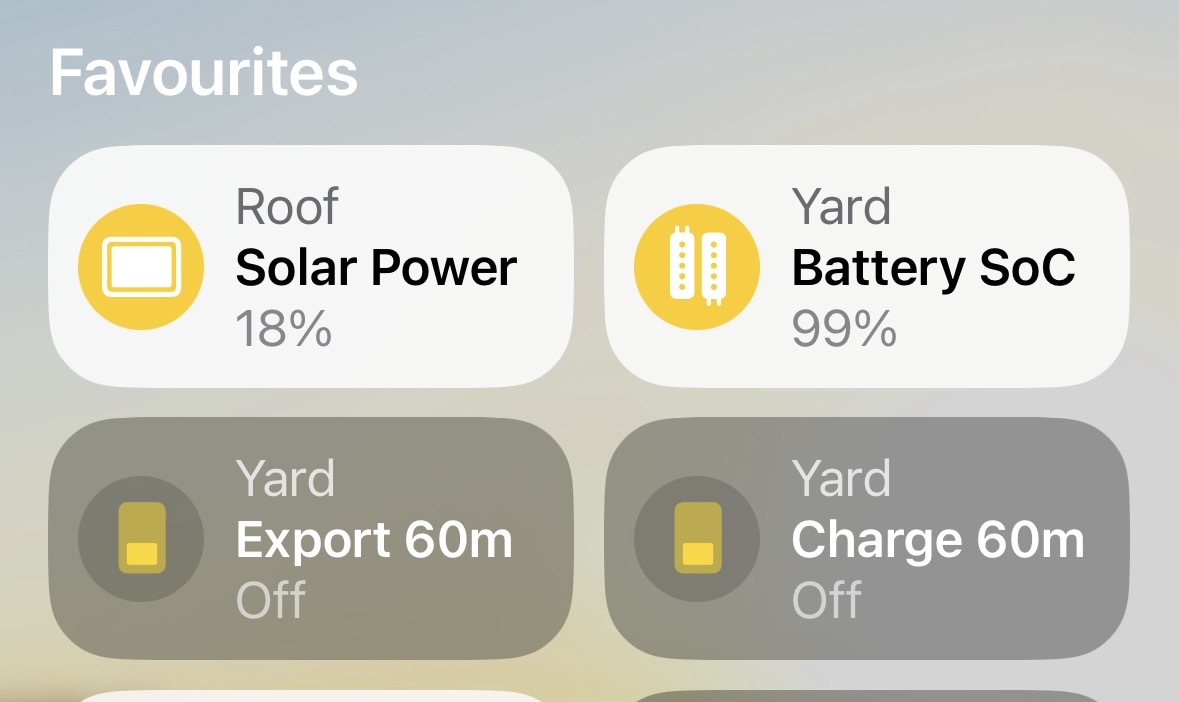
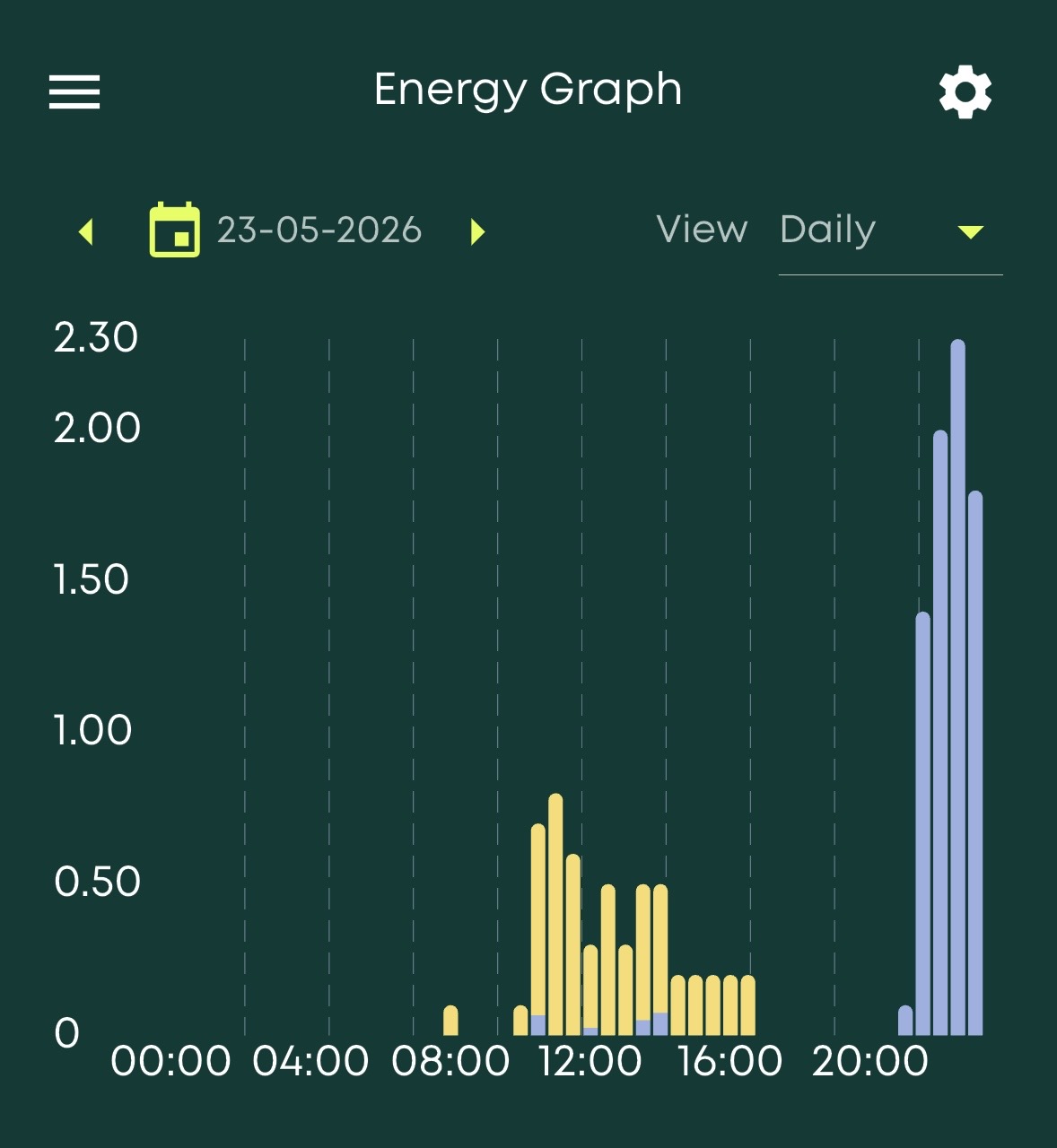
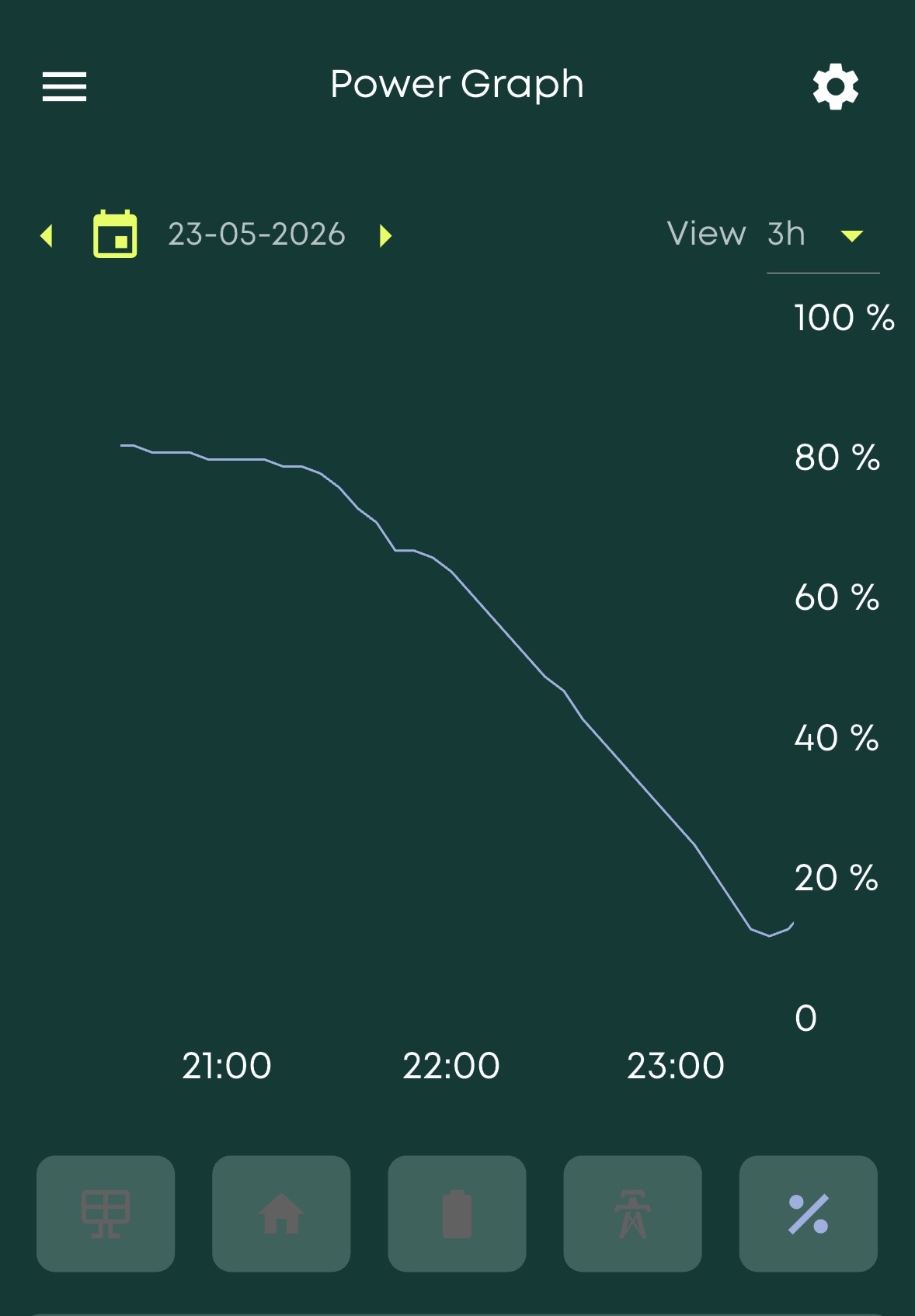
Real screenshots from GivHome showing Apple Home favourites, Eve energy graphs and detailed historical measurements. GivHome records solar generation, grid import and grid export into Eve-compatible history services for long-term local energy analysis.
Your energy data stays with you
GivHome is local-first. Live battery status, solar generation, Intelligent Octopus Go state and useful controls stay close to home rather than depending on cloud automation platforms.
Battery care without the faff
Battery Care Charging is designed for the known overnight cheap period, where there is usually enough time to be gentler. It can reduce unnecessary high-rate charging while still aiming to reach your target by morning.
Evening export that keeps a reserve
Excess Energy Export is optional local evening export management. It can sell spare battery energy after normal evening use, while keeping enough charge for your home to get to the cheap overnight window.
Why GivHome exists
GivHome started because Intelligent Octopus Go charging sessions could unintentionally drain GivEnergy home batteries. It now helps owners run their battery more calmly, locally and confidently — especially when long-term battery health and support matter.
Bring your GivEnergy battery into Apple Home
Download the ready-to-use Raspberry Pi image, flash it to a microSD card, open givhome-pi.local, add your details and pair GivHome with Apple Home.
Download GivHome imageSave the image to a microSD card using Raspberry Pi Imager.
Insert the card, connect Ethernet to your router, and power up your Raspberry Pi.
Type givhome-pi.local into any browser to set up. If it does not open, check your router or network app for the Raspberry Pi IP address and open that instead.
Detailed setup journey
First sign in
- When Homebridge opens, create a username and password of your choice.
- The Homebridge status page may show updates for Homebridge, Homebridge UI, plugins or Node.js.
- Click Plugins.
Configure GivHome
- Open the GivHome Plugin Card.
- Click the three vertical dots, then choose Plugin Config.
- Enter your GivEnergy and Octopus details.
- Adjust Charging Behaviour if needed. Leave advanced settings alone unless you know why you need them.
- Press Save, then Restart.
Enable the Child Bridge and pair with Apple Home
- After Homebridge restarts, click Plugins.
- On the GivHome card, click the purple flashing bridge icon at the top right.
- Turn on Child Bridge, scroll down, click Save, then restart when prompted.
- Return to Plugins, then on the GivHome card click the flashing squares icon at the top right.
- Scan the QR code with your iPhone camera, or use the 7-digit code in the Apple Home app.
- Once paired, press Save below the QR code.
Finish in Apple Home
Find the new GivHome tiles, move them to the right room, then favourite the ones you want on your Home dashboard.
Good to know
Small details that make GivHome easier to trust and easier to live with.
Does GivHome support multiple GivEnergy AIO batteries?
Parallel AIO support is currently in beta. In a multiple AIO installation, the GivGateway presents the connected batteries as one larger virtual system, so GivHome should be pointed at the Gateway Serial Number rather than the individual AIO serial numbers. Combined SOC, charging and export values should then appear naturally in Apple Home without extra tiles.
What should I enter for Serial Number?
For a single AIO or inverter, use the serial shown for that device in the GivEnergy app. For dual AIO or three-AIO systems, use the GivGateway Serial Number. In simple terms: have multiple AIOs? Just point GivHome at the Gateway.
How much space do Eve history records use?
Very little. Five years of solar, import and export history uses less than 40 MB in total — about the size of a handful of photos from your phone.
What address do I use after first boot?
Open givhome-pi.local in your browser. If it does not appear, check your router or network app for the Raspberry Pi IP address and open that instead.
What is Excess Energy Export?
Excess Energy Export is optional local evening export management. It can export spare battery energy later in the evening while keeping enough charge for your home to get to the next cheap overnight window. It is not Agile price automation.
What is Battery Care Charging?
Battery Care Charging is optional gentler overnight charging. During the main cheap window, GivHome can use a kinder charge rate when there is enough time to reach target without always charging at full power.
Why enable Child Bridge mode?
Child Bridge mode usually gives the cleanest Apple Home experience. It keeps GivHome separate inside Homebridge, makes pairing easier, and helps preserve stable HomeKit accessories during plugin updates.
Why do some GivHome tiles appear as lights?
Apple Home does not offer a native battery automation tile. GivHome uses reliable HomeKit accessory types so battery level, smart windows, grid import/export and manual controls remain visible, automatable and Siri-friendly.
Contact GivHome
Questions, bug reports and useful feedback are welcome.
This opens your email app so you can review the message before it is sent.